Memories, history and stats
How do I add a photo, video, note or voice memory?
Short answer
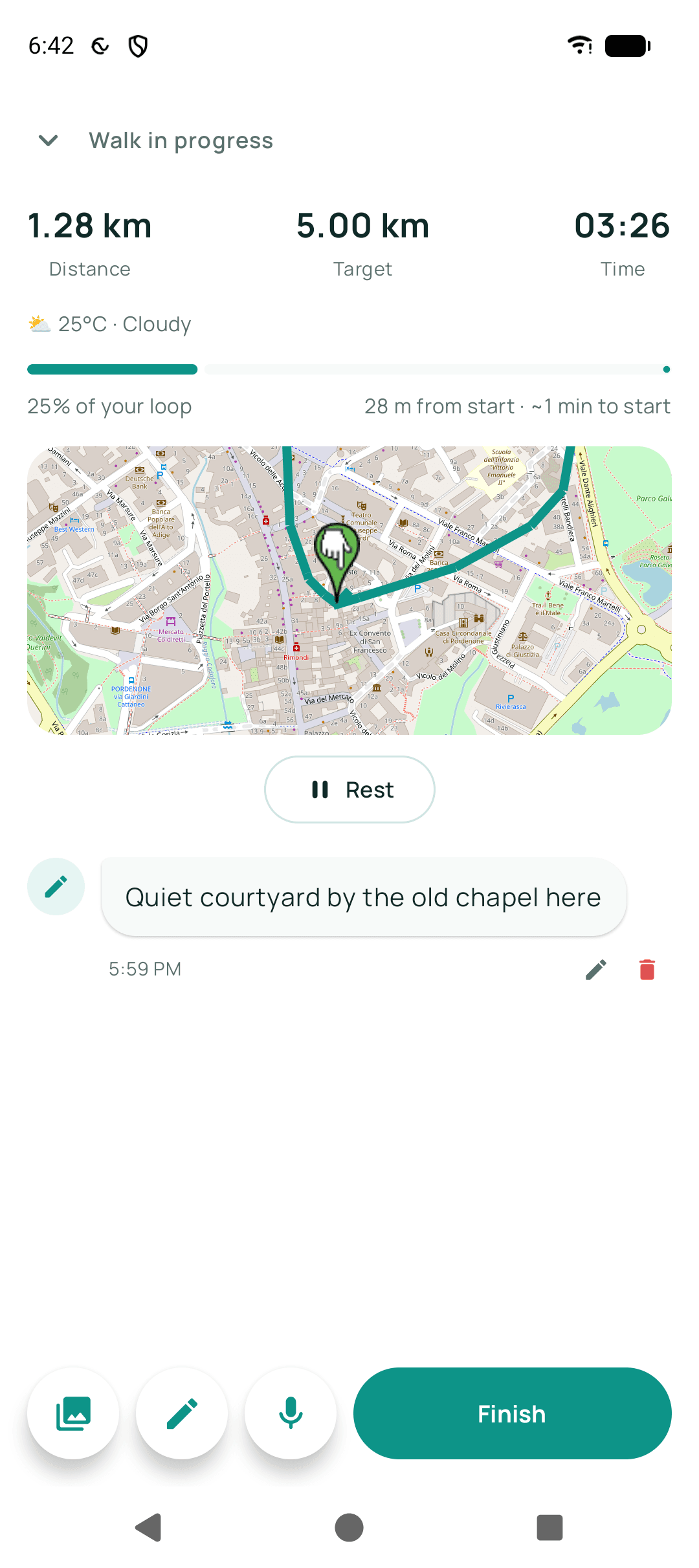
During a walk, use the add control on the walk screen to take a photo or video, record a voice note, or write something down. You can also open a finished walk in your history and add to it later. Everything you attach stays on your phone with that walk.
Updated · 2 min read
Why they are attached to a place
A photo from a walk is more interesting with the bend in the path it was taken at. Memories are pinned to where you were, so a walk becomes a small map of things worth remembering rather than an undifferentiated album.
Step by step
- While walking, open the add controlOn the walk screen.
- Choose what to addA photo, a video, a voice note or written words.
- Capture itIt is attached to the walk at the point you were standing.
- Or add laterOpen the walk in your history and add to it any time.
What happens next?
The memory is saved on your phone alongside the walk and appears on the walk's map at the place you added it.
Related guides
- Where are my past walks stored?On your phone, in Walkable's own private storage. Nowhere else.
- Can I move my memories to another phone?Yes, through a Drive backup with 'Include photos & audio' switched on.
- What information does Walkable store?Walks, routes, photos, notes, places and settings — all on your phone, none on our servers.
Was this helpful?
Nothing is sent or recorded — this only changes what you see next.
Feedback about the guide: How do I add a photo, video, note or voice memory?Still stuck? Contact Walkable Support or ask the Community.