Privacy and your data
How do I control what I share?
Short answer
Before sharing a walk you can turn individual details off, and the preview updates to show exactly what will go. For live sharing, you choose whether to share until you finish or to send your position just once, and you can stop it at any moment.
Updated · 2 min read
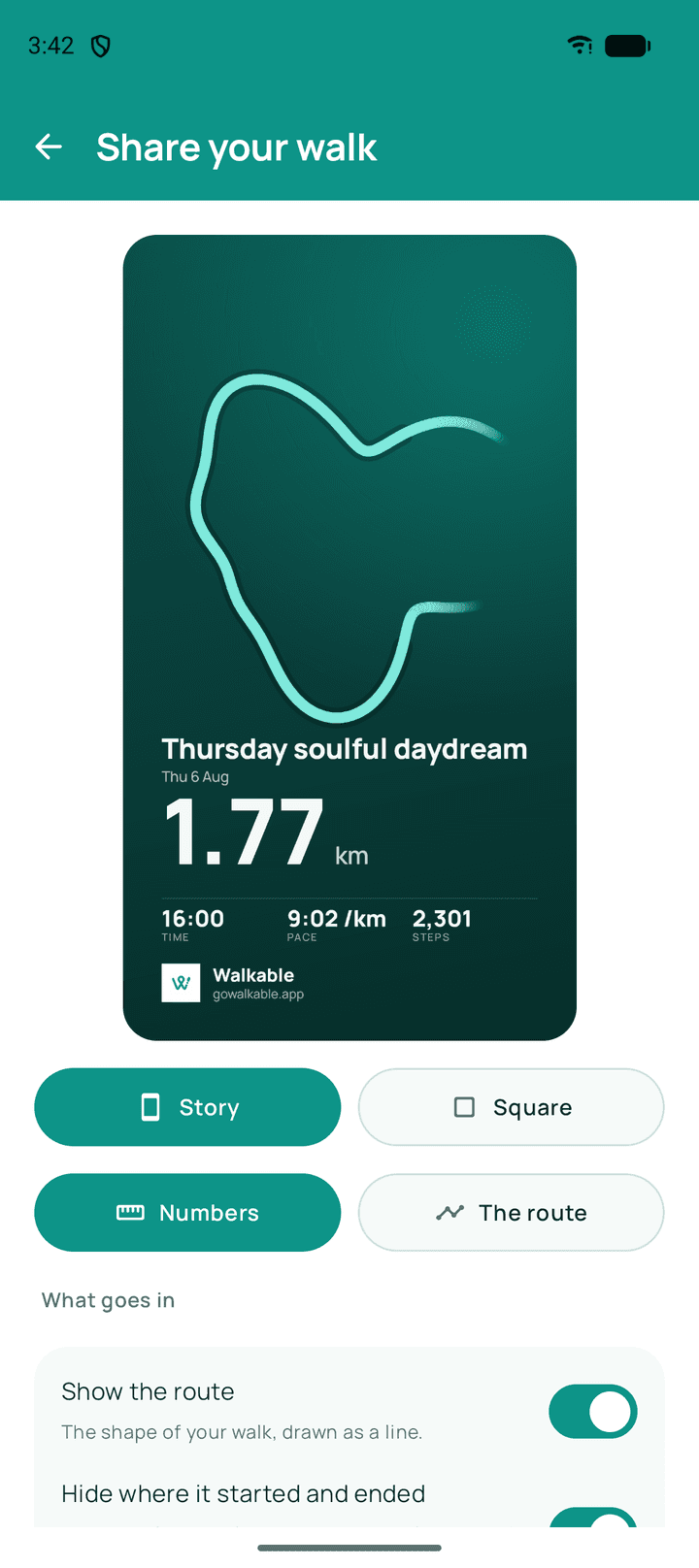
Step by step
- Open the walk you want to shareFrom your history, or at the end of a walk.
- Choose what to includeSwitch off anything you would rather not send.
- Check the previewWhat you see is exactly the image that will be shared.
- Share itThrough whichever app you like — Walkable hands over a file, nothing more.
What happens next?
The recipient sees only what was in the preview. Nothing further is sent, and nothing about them comes back to you.
Related guides
- What information is included in a shared walk?The walk's shape and the details you left on. Never your history or your identity.
- What happens when I share a walk?Only what you chose to share goes, and live sharing expires by itself.
- How do I share a walk?Make an image of the walk, choose what it shows, and send it however you like.
Was this helpful?
Nothing is sent or recorded — this only changes what you see next.
Feedback about the guide: How do I control what I share?Still stuck? Contact Walkable Support or ask the Community.