Walking without internet
How do I download or prepare an offline region?
Short answer
Open Walkable's offline maps screen, pick the region covering the area you want, and let the download finish. It is a large file, so use wifi and give it time.
Updated · 2 min read
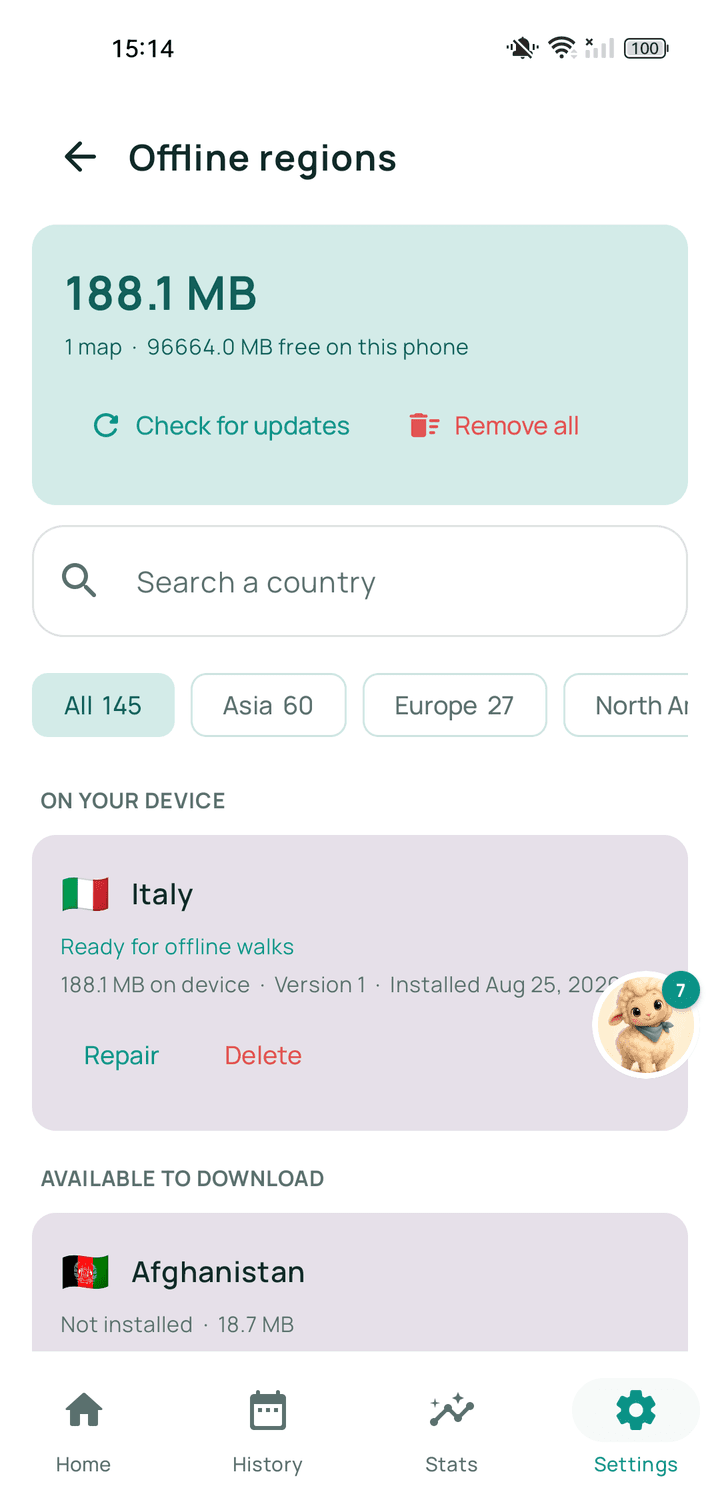
Step by step
- Connect to wifiRegions are big enough that mobile data is a poor choice.
- Open offline maps in settingsWalkable lists the regions available to download.
- Choose your regionPick the one covering where you will be walking.
- Keep the app open while it downloadsLeaving it in the foreground on wifi is the reliable way to get a complete file.
- Confirm it is ready, then test itSwitch to aeroplane mode and ask for a short route in that area.
What happens next?
That area now works with no connection: map, route planning, guidance and recording all run on the phone.
Common problems
The download stopped part-way
Start it again on a stable wifi connection. A partial region is not usable and will not be used.
There is no region for my area
Coverage is still growing. You can ask for an area through Walkable Support, and recording works there regardless.
Related guides
- What are offline regions?Downloadable packages of map and path data that let Walkable work with no signal.
- How do I prepare Walkable before travelling?Download the offline map for where you are going, on wifi, before you leave.
- Walkable is not working offlineThe offline map for that area is missing or incomplete.
Was this helpful?
Nothing is sent or recorded — this only changes what you see next.
Feedback about the guide: How do I download or prepare an offline region?Still stuck? Contact Walkable Support or ask the Community.