Backup and recovery
How do I move Walkable to another phone?
Short answer
Back up on the old phone, then restore on the new one with your recovery key. Android's 'copy from your old phone' flow will not bring your walks across — Walkable deliberately opts out of it — so the backup is the route, and it is worth doing before the old phone is wiped.
Updated · 3 min read
Why the phone-to-phone transfer does not include Walkable
Android's setup flow can copy an app's data to a new device. Walkable opts out of that, and out of Google's automatic system backup, because both would copy your entire location history without you choosing to.
The result is a genuine trade rather than a free win: your walks are not silently duplicated anywhere, and moving them takes a deliberate act.
The order that actually works
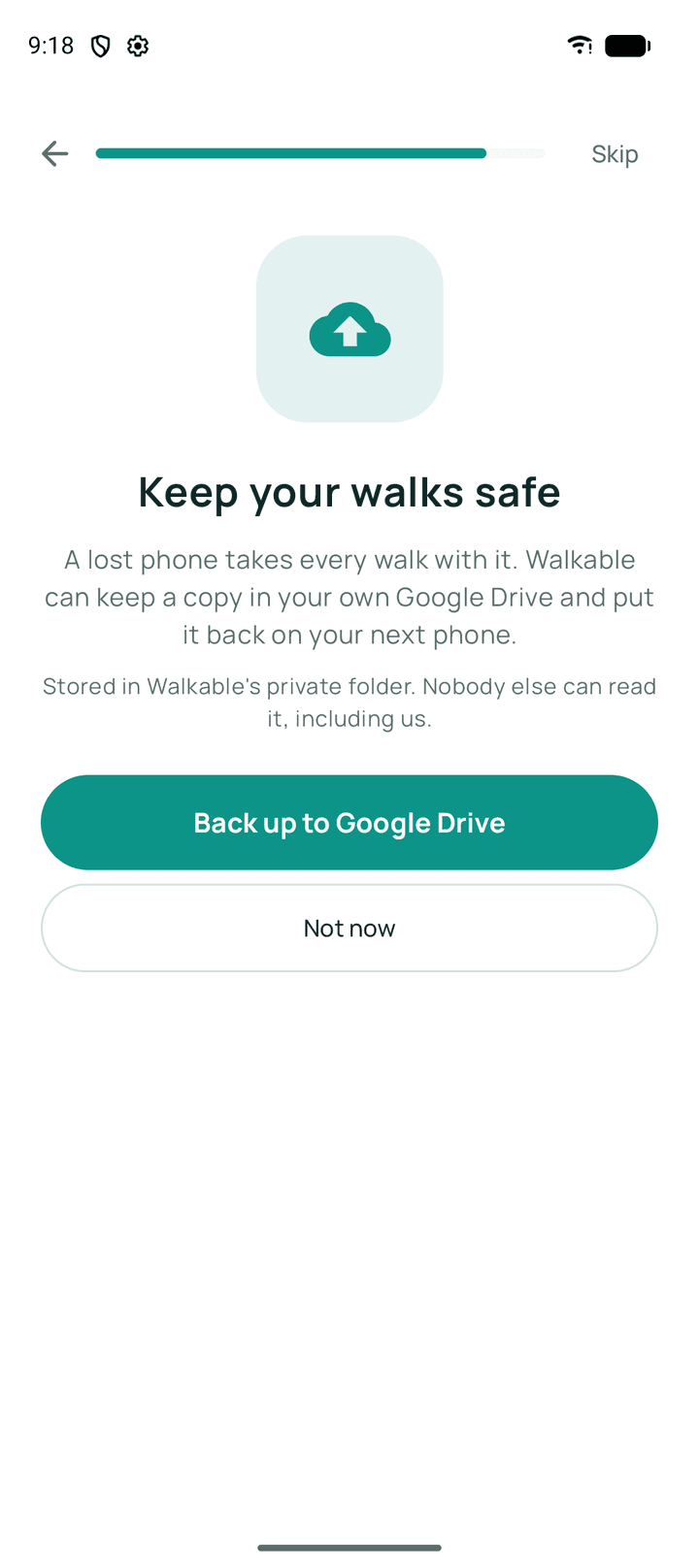
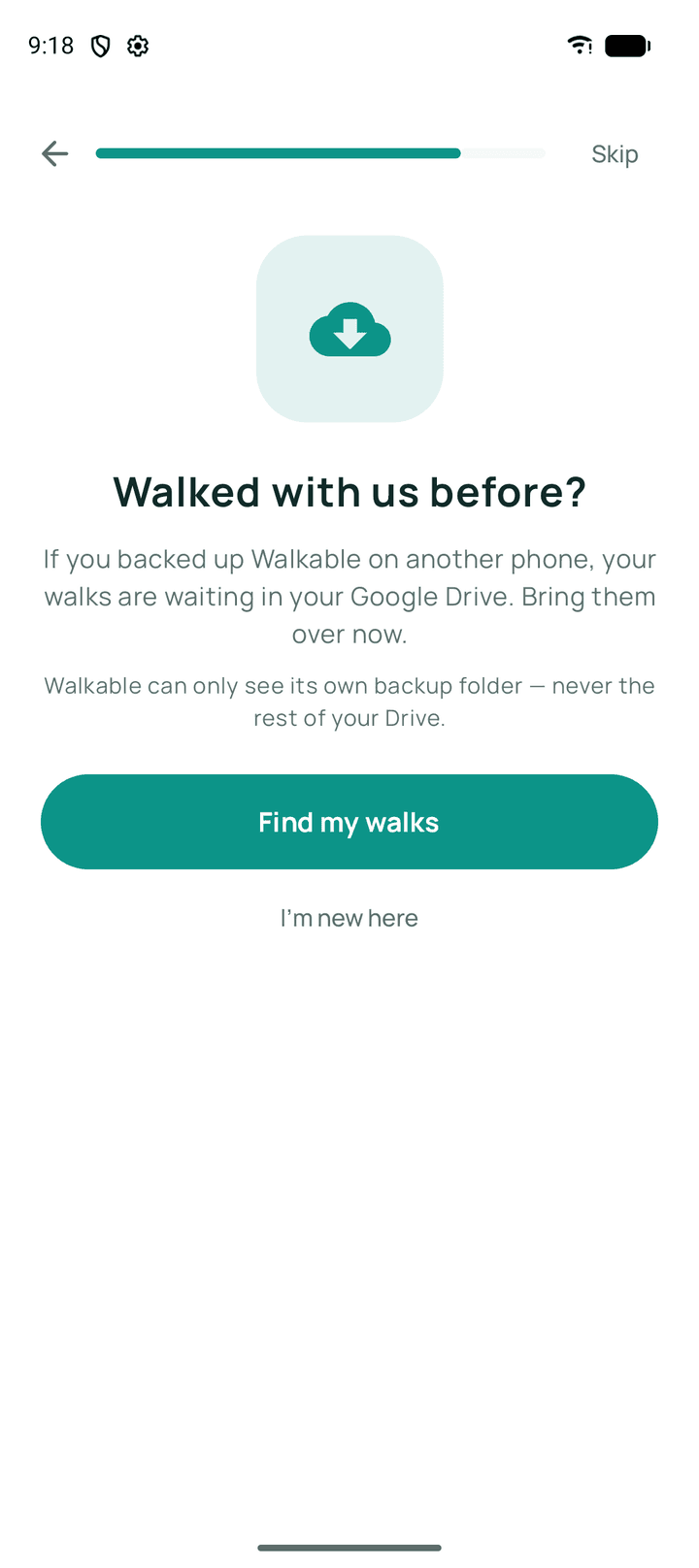
On the old phone: set up encrypted backup if you have not already, save the recovery key, and tap 'Backup now' so the copy in Drive includes your most recent walks. Then, on the new phone, connect the same Google account, choose Restore, and enter the key.
If you have no backup and the old phone is already gone, your history went with it. Walkable has no account and keeps no copy, so there is nothing anybody can recover on your behalf.
Related guides
- How do I restore my walks on a new phone?If you have an existing Drive backup, connect the same Google account and restore from it.
- How do I back up my walks?Connect your Google Drive and set up encrypted backup. Keep the recovery key — it is the only way back in.
- How do I export and import my data?A standalone export file is not available in the public app yet. Today the Drive backup is the only route.
Was this helpful?
Nothing is sent or recorded — this only changes what you see next.
Feedback about the guide: How do I move Walkable to another phone?Still stuck? Contact Walkable Support or ask the Community.