Backup and recovery
How do I back up my walks?
Short answer
Open Settings, choose Cloud backup, connect your Google Drive and set up encrypted backup. Walkable locks your walks on your phone before uploading them, so Google stores the file but cannot read what is in it. You will be shown a recovery key once — save it, because it is the only thing that can open your backup on a new phone, and nobody, including us, can recover it for you.
Updated · 4 min read
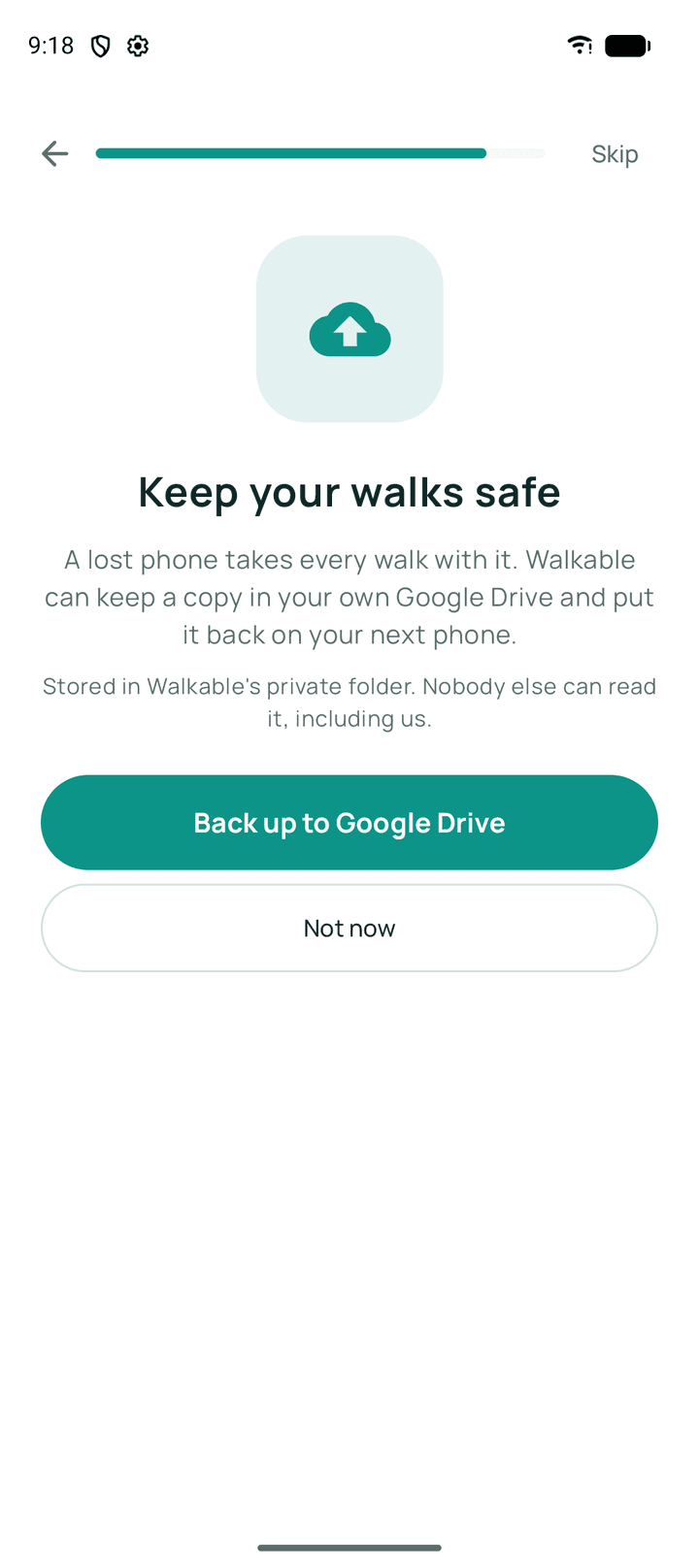
What Google can and cannot see
The backup goes into a private folder of your own Google Drive that only Walkable can reach. What lands there is encrypted before it leaves your phone, so Google holds a file it cannot open — not your routes, not your coordinates, not your photos or notes.
This is a real change from how backup used to work. The earlier version saved an ordinary readable file, which is why uploads were switched off for a release rather than left running. What Google can still see is that a file exists and roughly how big it is.
The recovery key, and why we cannot help you with it
The key that unlocks your backup is derived from a recovery key that exists only where you put it. Walkable never sends it anywhere and never stores it — not on your phone, and certainly not on a server, because there is no Walkable server in this at all.
That is what makes 'Google cannot read your backup' a true statement rather than a comforting one. It also means that if you lose the recovery key and lose the phone, the backup is permanently unreadable. Those are the same fact, seen from two directions.
You can replace the recovery key at any time from the backup screen. Your backup stays exactly where it is; only the small piece that wraps the key is rewritten, and the old key stops working immediately.
If you had a backup from before
Backups made by older versions of Walkable are still readable, and restoring from one works exactly as it did. You do not need a recovery key for those, because they were never encrypted.
The first time an encrypted backup succeeds, Walkable removes the old readable copy from your Drive. Photos are handled one at a time, and each readable file is only deleted once its encrypted replacement is safely stored.
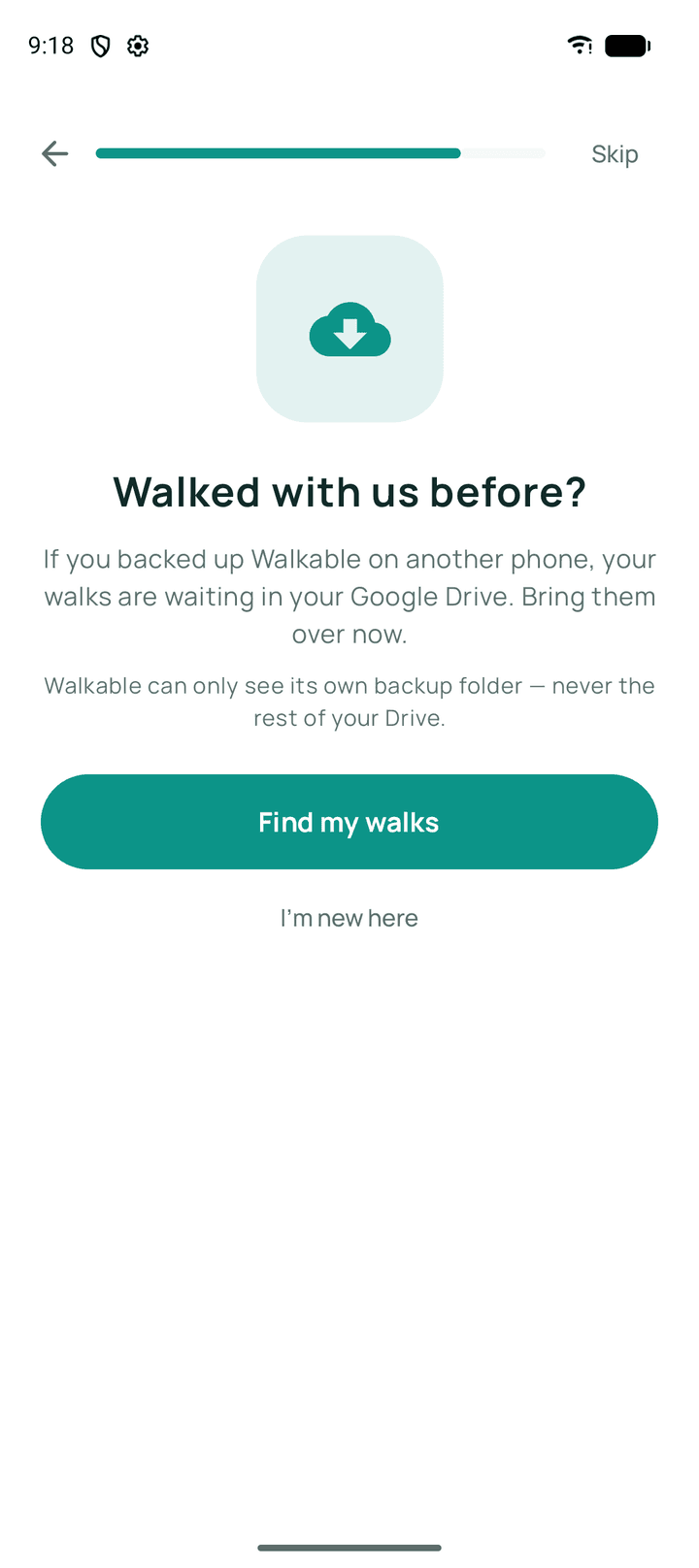
Step by step
- Open Settings and choose Cloud backup.
- Connect your Google Drive.Walkable asks only for its own private app folder — not your documents, photos or anything else in your Drive.
- Choose 'Set up encrypted backup'.Walkable creates the key that locks your backup, and shows you the recovery key that opens it.
- Save the recovery key before you tap on.Write it down, or put it in a password manager. This is the one screen where it exists — it is never shown again.
- Turn on automatic backup, if you want it.Once a day, and after a walk. You can also back up by hand whenever you like.
What happens next?
Your walks are sealed on the phone and the encrypted file goes to your own Drive. If you turn on 'Include photos & audio', each photo, video and voice note is encrypted and uploaded the same way. On a new phone, connect the same Google account, choose Restore, and enter your recovery key.
Related guides
- Is Google Drive backup automatic?Only once you switch it on. Nothing is uploaded until you connect an account and set it up.
- What is included in a backup?Your walks, routes, places and settings — and media only if you turned that on.
- How do I restore my walks on a new phone?If you have an existing Drive backup, connect the same Google account and restore from it.
- What should I do if my backup is not appearing?Check the Google account first — it is the cause almost every time.
Was this helpful?
Nothing is sent or recorded — this only changes what you see next.
Feedback about the guide: How do I back up my walks?Still stuck? Contact Walkable Support or ask the Community.